# PLANIX HDR
## HDR Information
iGUIDE PLANIX features Ricoh Theta Z1 HDR processing as well as in-camera, three-exposure, iGUIDE HDR processing using a modified [exposure fusion](https://en.wikipedia.org/wiki/Exposure_fusion) algorithm; these new iGUIDE HDR modes are available using PLANIX firmware version 1.4.18 or later.
The term [HDR](https://en.wikipedia.org/wiki/High-dynamic-range_imaging), as it is used here, is referring to the combining of multiple images, taken at different exposure values, to create a composite image with beneficial characteristics from the originals. The goal of this process is usually to preserve information in the highlighted and shaded areas of the image and make it appear more like the experience of what is seen with the human eye.
## Changing the HDR Mode:
1. Connect to your camera and open the Survey interface
2. Navigate to the Settings page by selecting the menu icon at the top left corner and clicking on **Settings**
3. Under the **HDR** setting, select your desired mode
4. Press on **Save Settings** at the top right corner
## HDR Modes
The 5 available HDR modes in the Survey settings menu are:
### External (Ricoh):
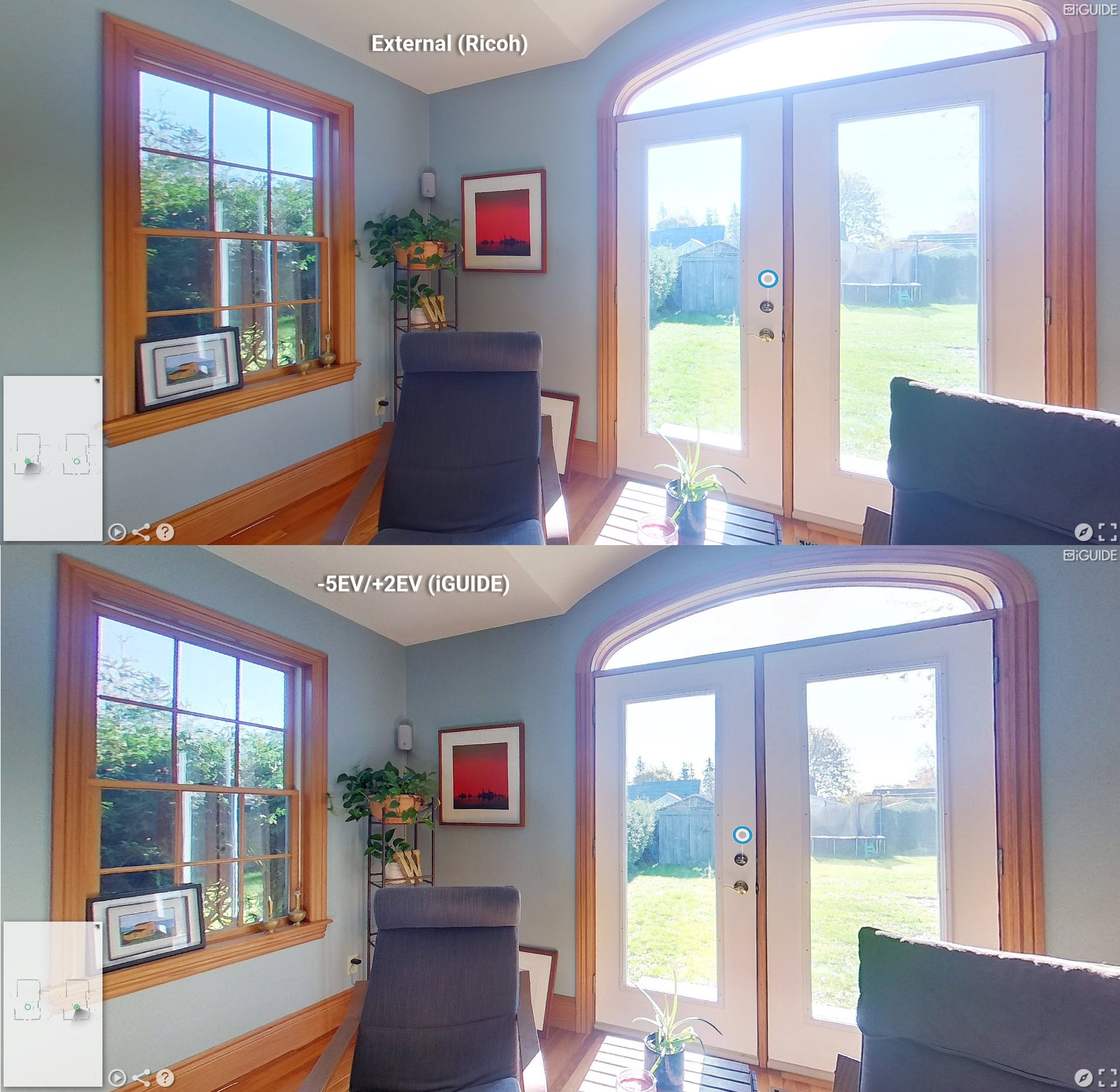
This mode uses the native HDR processing of the Ricoh Theta Z1. This mode is faster than the other modes by a few seconds per scan and the resulting images have less contrast.
### -5EV/+2EV (iGUIDE):
This mode uses iGUIDE's take on exposure fusion and is intended for use in indoor spaces with bright highlights and dark shadows. This mode is a great choice for almost all scans whether they be of interiors or exteriors. It has excellent contrast and detail in the highlights.
### -1EV/+1EV (iGUIDE):
This mode is similar to the previous mode but has less extreme bracketing. It is excellent for outdoor use where there are less extreme highlights and shadows.
### -3EV/+3EV (iGUIDE):
This mode may be your best choice when shooting spaces with challenging highlights and shadows. It is more balanced than 'iGUIDE -5 +2' and may be preferable in some situations.
### Off:
This mode disables HDR processing. This is an excellent choice for spaces that have no noticeable highlights and shadows or where visual data in those areas doesn’t matter. This mode is significantly faster than all other modes.
## HDR Mode advice:
The key to using each of these modes to their full potential is to experiment and gain an understanding of their effects. This is done by shooting multiple scans in the same location while changing the HDR setting for each and then comparing the results. Remember that there is no limit to the number of allowable scans with the iGUIDE PLANIX camera system. It is beneficial to try out a few different settings and then pick the best scans to show your clients. A little experimentation will go a long way to make your iGUIDE look its best.
---
# Agent Instructions: Querying This Documentation
If you need additional information that is not directly available in this page, you can query the documentation dynamically by asking a question.
Perform an HTTP GET request on the current page URL with the `ask` query parameter:
```
GET https://open-2c.gitbook.com/url/planitar.gitbook.io/iguide-support/support-center/camera-systems-survey/planix/how-to/planix-hdr.md?ask=
```
The question should be specific, self-contained, and written in natural language.
The response will contain a direct answer to the question and relevant excerpts and sources from the documentation.
Use this mechanism when the answer is not explicitly present in the current page, you need clarification or additional context, or you want to retrieve related documentation sections.